![TW Blue Logo 230908a.png]](https://help.trakwell.ai/hs-fs/hubfs/TW%20Blue%20Logo%20230908a.png?width=126&height=17&name=TW%20Blue%20Logo%20230908a.png)
This article covers the display settings and account controls available to you on the Floorboard.
Table of Contents
Photo Display Options
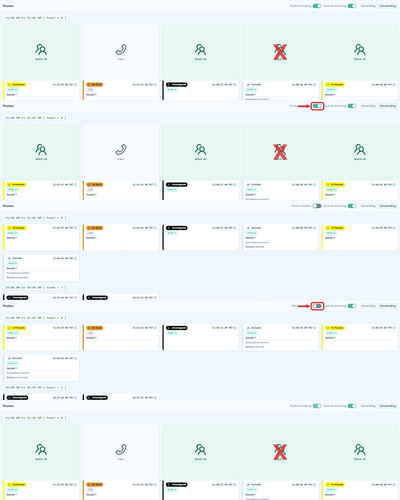
The Photos section has three display toggles on the top right that control how photos appear on the Floorboard. These settings are personal to your session and do not affect what other users see.

Photos Showing
Default: On
When on, photos display their camera image along with the opportunity details. When toggled off, the camera image is hidden and only the opportunity status is shown — such as whether it is unassigned or in process.
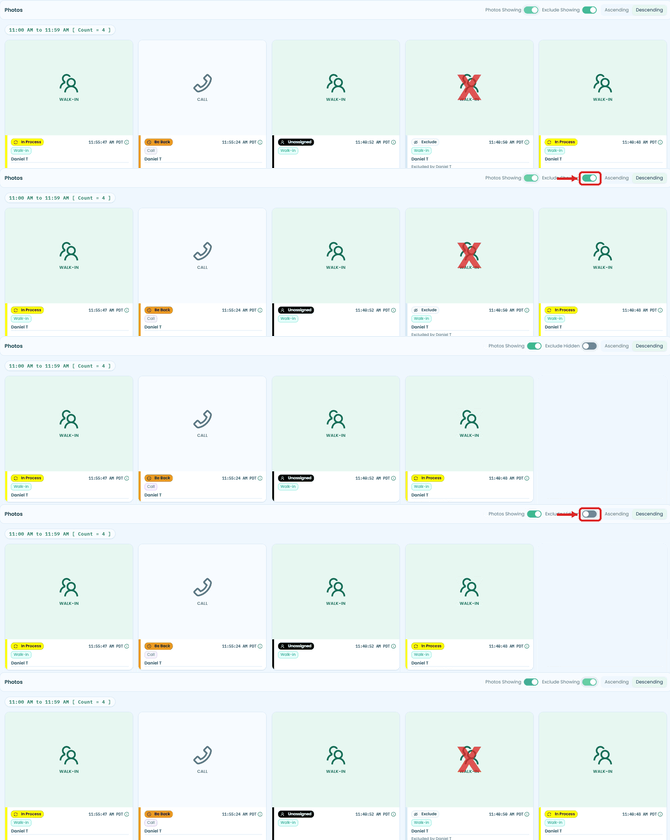
Exclude Showing
Default: On
When on, excluded photos remain visible on the Floorboard. When toggled off, all excluded photos are hidden from view.
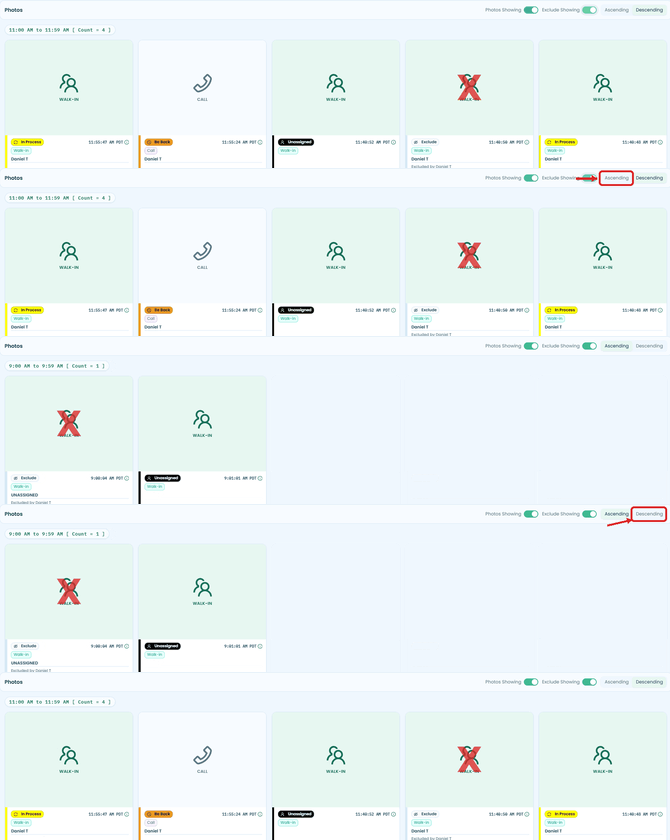
Ascending / Descending
Default: Descending
Controls the order in which photos are displayed.
- Descending — The most recent photos appear at the top. Earlier photos from the morning appear toward the bottom.
- Ascending — The earliest photos appear at the top. The most recent photos appear toward the bottom.
User Menu
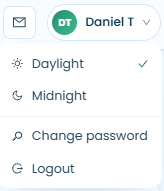
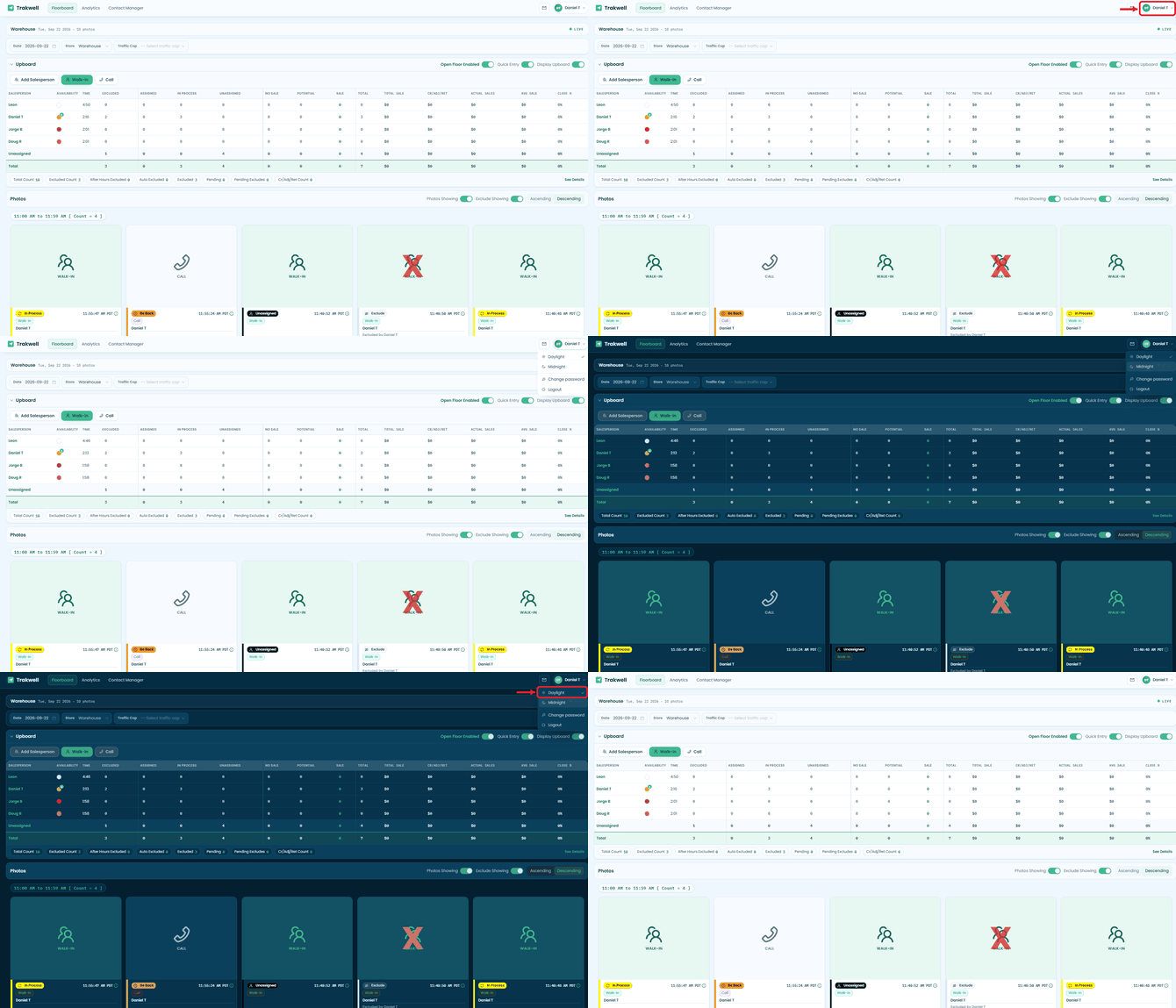
In the top-right corner of the Floorboard, you will see your display name. Click on it to open the user menu.
Daylight / Midnight
Switch between Daylight and Midnight display modes. Daylight is the default light theme. Midnight switches the Floorboard to a darker screen — useful if you prefer a darker display or are working in a low-light environment.
Change Password
Opens the password change flow. Use this to update your Trakwell account password at any time.
Logout
Logs you out of Trakwell for the day.
Still having trouble?
Contact us at support@trakwell.ai or call 833-503-9934.