![TW Blue Logo 230908a.png]](https://help.trakwell.ai/hs-fs/hubfs/TW%20Blue%20Logo%20230908a.png?width=126&height=17&name=TW%20Blue%20Logo%20230908a.png)
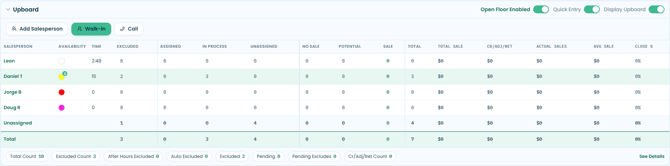
The Upboard gives you a real-time view of your sales floor — who's in the rotation, their current availability, and how the day is going. It also gives you the tools to manage the rotation, log walk-ins and calls, and control how opportunities are assigned.
Note: Some features on the Upboard are only available to users with Traffic Cop access. See the Traffic Cop section below for details.
Table of Contents
- Date, Store, and Traffic Cop
- Upboard Toggles
- Upboard Buttons
- Upboard Columns
- Filtering by Column
- Summary Row
- See Details
Date, Store, and Traffic Cop

At the very top of the Floorboard, you will find three controls:
Date — Defaults to today. Use the arrows to navigate to a previous or future date.
Store — Defaults to your assigned store. If you have access to multiple locations, you can switch between them here.
Traffic Cop — Displays who is currently designated as the traffic cop for the floor. This is informational only — it works like a billboard, letting everyone know who is managing the rotation. It does not change how the system functions on its own.
A user with Traffic Cop access can manage salesperson availability, control the Open Floor and Quick Entry toggles, and see all Upboard toggle options. Users without Traffic Cop access will not see these toggles and cannot change another salesperson's availability status.
Upboard Toggles

On the right side of the Upboard, there are three toggles. These are only visible to users with Traffic Cop access.
Open Floor Enabled
When Open Floor is on, incoming photos are placed in the unassigned pool. Salespeople must manually accept them.
When Open Floor is off, incoming photos are automatically assigned to the salesperson at the top of the rotation who is currently available.
Quick Entry
Quick Entry lets salespeople set the status of a photo directly from the Floorboard without opening the photo first.
For unassigned photos, two quick actions are available:
- Yellow circle — Accepts the photo and moves it to In Process
- Red X — Excludes the photo immediately, placing it in a pending state (no exclude reason required)
For photos that are In Process, four quick actions are available:
- Green circle — Records a Sale (pending, no data required)
- Blue circle — Records a Potential Sale (pending, no data required)
- Red circle — Records a No Sale (pending, no data required)
- Red X — Excludes the photo (pending)
Photos submitted via Quick Entry are saved in a pending status. They count toward totals but do not contain any entered data. Salespeople can go back and fill in the details later when they have more time.
Quick Entry is designed for fast-paced stores where salespeople may not have time to fill in customer details right away.
Display Upboard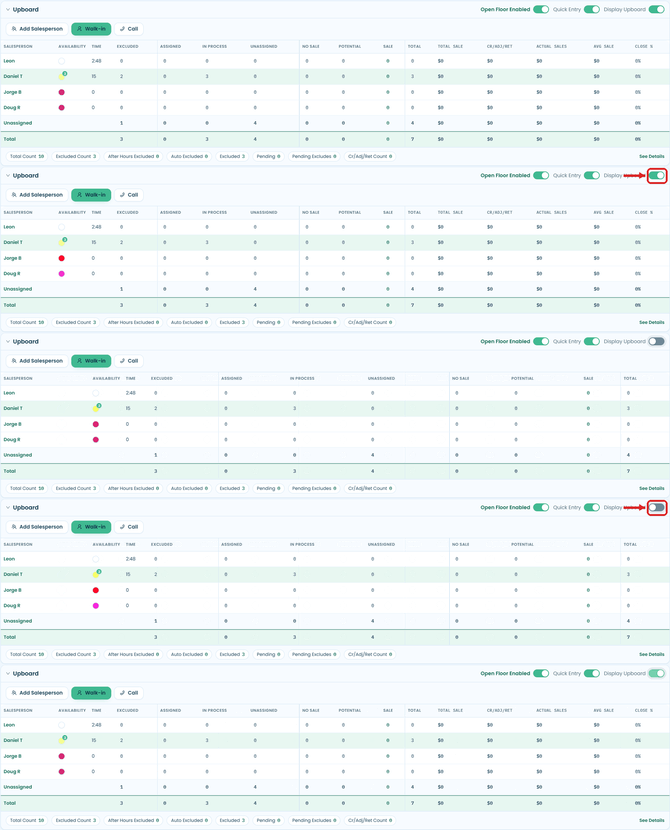
When this toggle is on, all performance columns are visible in the Upboard — including Sale, Total Sale, Average Sale, and Closing Percentage. When toggled off, those columns are hidden and only the basic rotation columns remain.
Upboard Buttons

Just below the toggles, there are three action buttons.
Add Salesperson
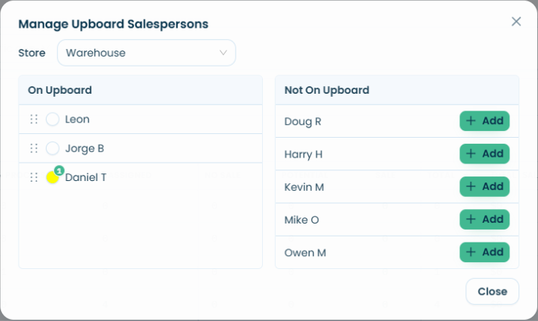
Opens the rotation management panel. The left side shows who is currently on the Upboard. The right side shows salespeople who are not currently on the Upboard and can be added.
If a salesperson does not appear on the right side, it means they are already on the Upboard at a different store location. A salesperson can only be on one Upboard at a time.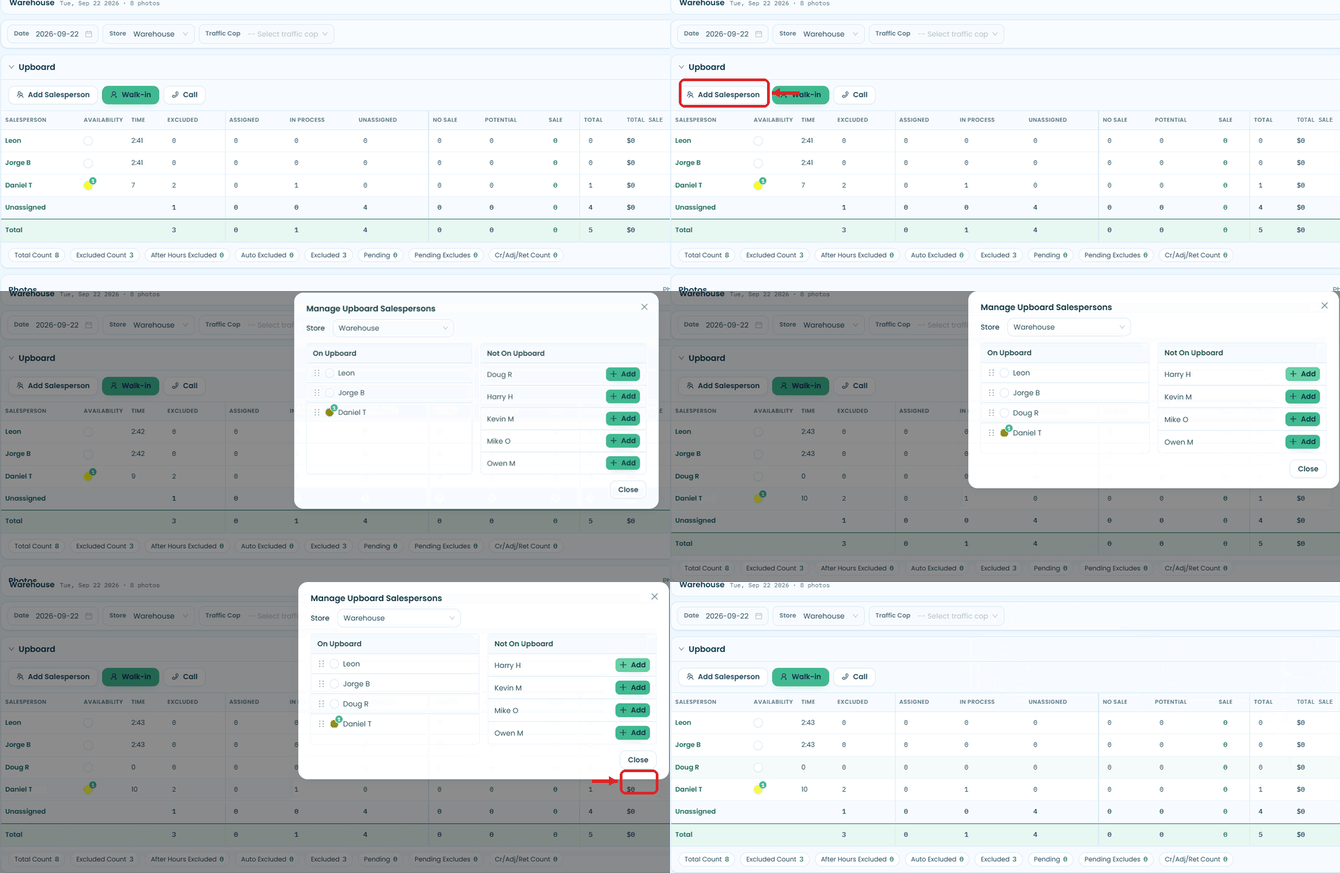
Walk-in
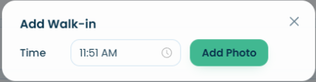
Use this to manually add a photo when a customer was not picked up by the camera — for example, if the camera missed someone or was temporarily offline. Select the time the customer came in and click Add Photo. The photo can be left unassigned or assigned to a salesperson.
Call
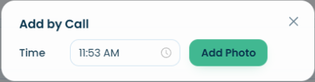
Use this to log a phone call as an opportunity. Enter the time the call came in and click Add Photo. The opportunity will appear with a phone icon and can be handled like any other photo on the Floorboard.
Upboard Columns
The Upboard displays one row per salesperson currently in the rotation, plus an Unassigned row and a Total row at the bottom.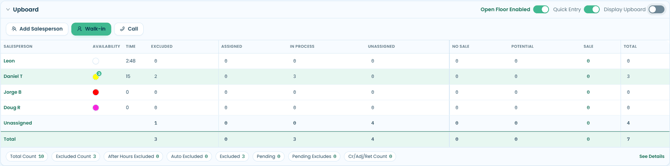
Salesperson — Lists everyone currently in the rotation.
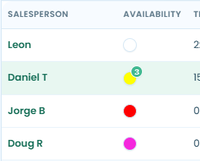
Availability — Shows the salesperson's current status: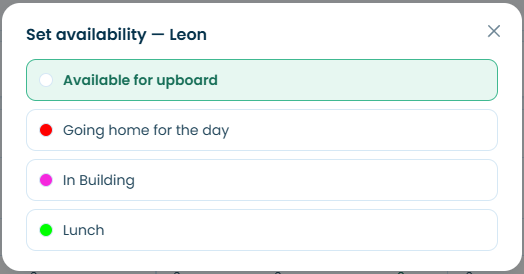
- White — Available for upboard
- Yellow — In Process with a customer
- Brown — Working with a Be-Back customer
- Pink — In Building (out of rotation but still on premises)
- Red — Going home for the day
- Green — Lunch
- Other colors may appear depending on your store's setup
Note: Traffic Cop users can click on a salesperson's availability status to change it. The options and colors shown may vary depending on your account's configuration.
Time — How long the salesperson has been in their current availability status.
Excluded — The number of photos that salesperson has excluded.
Assigned — Used by stores that have a three-step flow: Unassigned → Assigned → In Process. In this flow, Assigned means the salesperson has acknowledged the customer but has not started working with them yet. Most stores go directly from Unassigned to In Process and will rarely see activity in this column.
In Process — The number of customers the salesperson is currently working with.
Unassigned — Primarily shows the count of unassigned photos. This column is most relevant in the Unassigned and Total rows.
No Sale — The number of No Sale outcomes for that salesperson, including any submitted via Quick Entry.
Potential — The number of Potential Sale outcomes, including Quick Entry submissions.
Sale — The number of completed Sales, including Quick Entry submissions.
Total — The total number of opportunities that have been assigned to or completed by that salesperson.
Total Sale — The total dollar amount of all sales for that salesperson.
CR/ADJ/RET — The total amount of credit adjustments and returns logged for that salesperson. This value can be positive or negative depending on whether a return or adjustment was applied.
Actual Sales — The result of taking the Total Sale amount and adding or subtracting the CR/ADJ/RET value. This reflects the salesperson's true sales performance for the day after any adjustments. Total Sale itself is never affected — it always shows the original entered amount.
Avg Sale — The average sale amount for that salesperson.
Close % — The salesperson's closing percentage for the day.
Filtering by Column
You can filter the photos section by clicking on any value in the Upboard.
- Click a salesperson's name to see only their photos.
- Click a number in any column (such as Excluded, In Process, No Sale, etc.) to filter photos to that specific status for that salesperson.
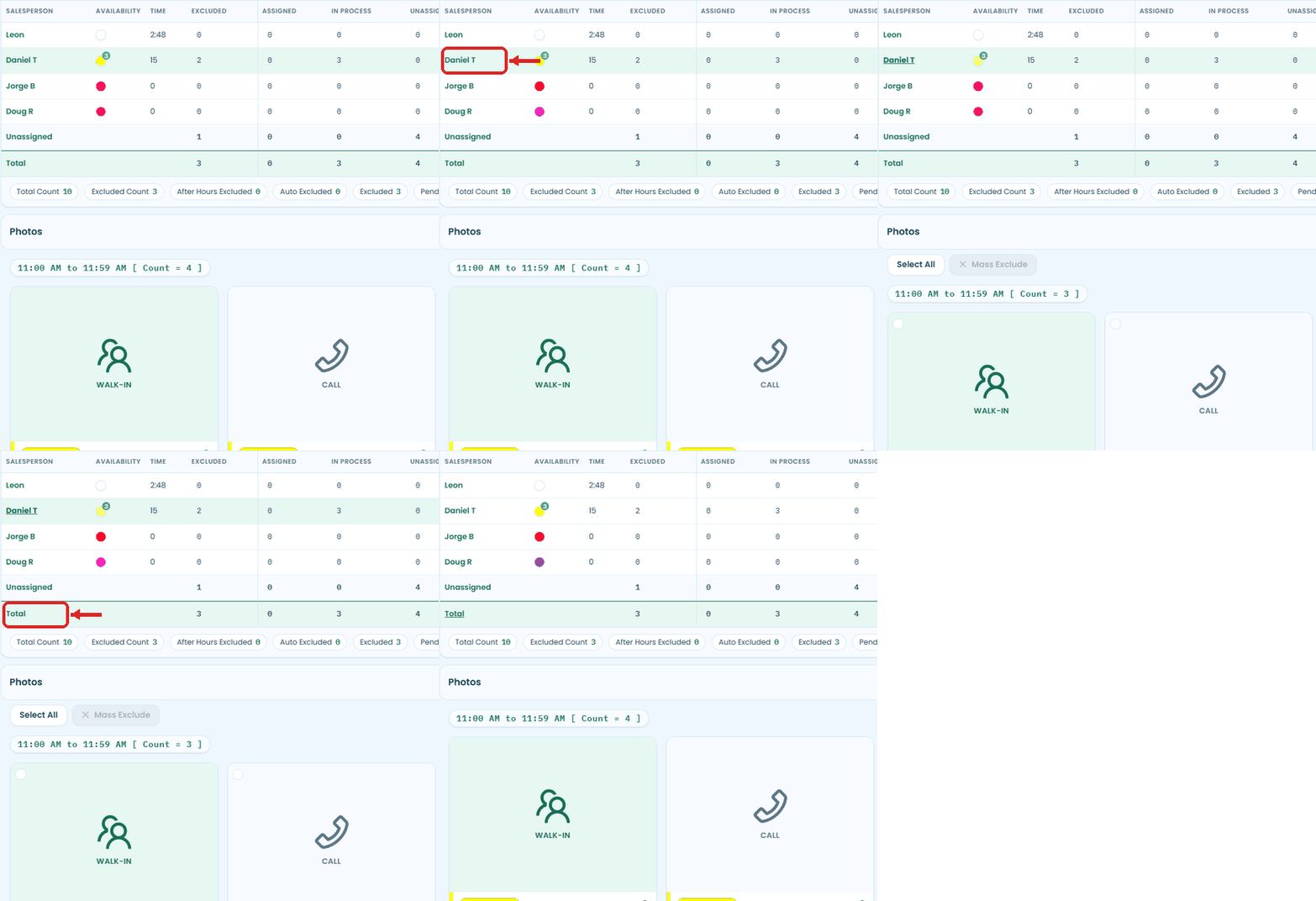
To clear the filter and go back to viewing all photos, click Total in the bottom-left of the Upboard under the Salesperson column.
Summary Row
At the bottom of the Upboard, a summary row shows a breakdown of all photos for the current day. Each item is also a filter — click any of them to view just those photos.

Total Count — All photos for the day, including excluded ones.
Excluded Count — All excluded photos.
After Hours Excluded — Photos that came in outside of store hours and were automatically excluded. These can be manually unexcluded if needed.
Auto Excluded — Photos excluded automatically by the system.
Excluded — Photos that were manually excluded.
Pending — Photos submitted via Quick Entry as a Sale, Potential Sale, or No Sale, with no data entered yet.
Pending Excludes — Photos excluded via Quick Entry with no exclude reason entered yet.
Cr/Adj/Ret Count — The number of credit adjustments and returns logged for the day.
To clear any filter and return to the full view, click Total in the bottom-left of the Upboard.
See Details
In the bottom-right corner of the Upboard, the See Details button takes you to the Sales Search page, where you can search and review completed sales records.
Still having trouble?
Contact us at support@trakwell.ai or call 833-503-9934.