![TW Blue Logo 230908a.png]](https://help.trakwell.ai/hs-fs/hubfs/TW%20Blue%20Logo%20230908a.png?width=126&height=17&name=TW%20Blue%20Logo%20230908a.png)
If you've been using Trakwell for a while, 3.0 is going to feel familiar but look and work a little differently in some key areas. This guide walks you through the main changes so you can get up to speed fast.
Table of Contents
- Logging In
- Joining the Rotation
- The Floorboard Layout
- Add Salesperson, Walk-In, and Call Buttons
- Photo Actions
- Quick Entry
- Upboard Toggles
- Quick Reference
- CRM
Logging In
The login page got a fresh look in 3.0, and what happens after you log in is different too.
The Login Page
The old login page said "Welcome Back!" and used a green Submit button. In 3.0, the page says "Sign in," all fields are marked as required, and the button is now a teal Sign in button. The overall design is cleaner and more modern.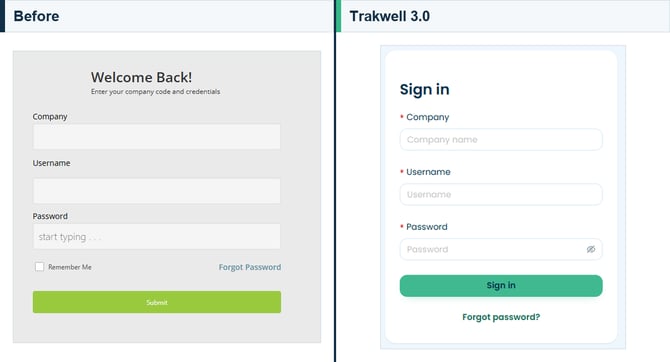
After You Log In
In the previous version of Trakwell, you landed directly on the Floorboard after logging in. In 3.0, you'll land on a Home page first -- "Your sales floor, at a glance." From there you can get to the Floorboard two ways:
- Click "Enter the floor" on the Home page
- Click Floorboard in the top navigation bar
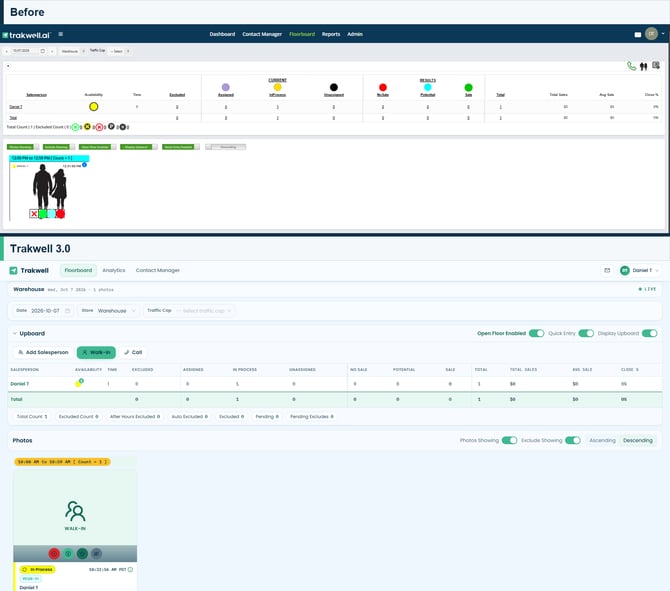
Once you're on the Floorboard, you'll notice the layout has been updated. The Upboard now shows cleaner column labels, the toggles have moved, and the action buttons on the left are labeled with text instead of icons.
Joining the Rotation
The flow for joining your store's rotation got a cleaner look in 3.0.
Old Trakwell
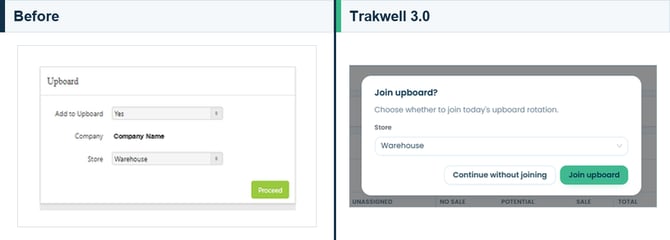
After logging in, you were presented with an "Upboard" card that had a dropdown to set "Add to Upboard" to Yes or No, along with a Store selector and a green Proceed button.
Trakwell 3.0
You'll now see a "Join upboard?" prompt with a cleaner modal. Select your store from the dropdown, then choose Join upboard to enter the rotation or Continue without joining if you just need to view the Floorboard without being in the rotation.
The "Join upboard?" prompt only appears once per day -- the first time you click into the Floorboard. If you skip it and need to join the rotation later, you have two options:
- Go back to the Home page and click "Enter the floor"
- From the Floorboard, click Add Salesperson and add yourself to the rotation from there
The Floorboard Layout
The overall structure of the Floorboard is the same -- the Upboard on top, photos below -- but several controls moved around.
Old Trakwell
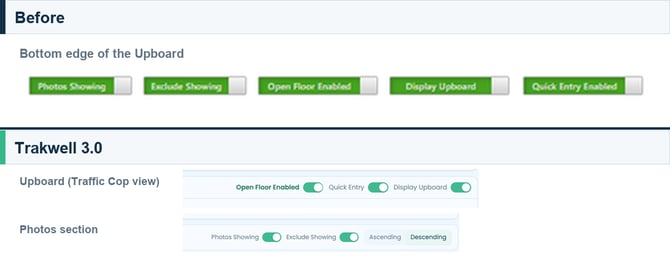
The toggles (Photos Showing, Exclude Showing, Open Floor Enabled, Display Upboard, Quick Entry Enabled) ran along the bottom edge of the Upboard as green pill buttons, visible to all users.
Trakwell 3.0
The toggles have been reorganized into two groups:
- Open Floor Enabled, Quick Entry, and Display Upboard are now in the top-right corner of the Upboard and are only visible to users with Traffic Cop access
- Photos Showing, Exclude Showing, and sort order (Ascending/Descending) are now in the top-right of the Photos section and are visible to all users
Add Salesperson, Walk-In, and Call Buttons
These three buttons moved and got a visual upgrade in 3.0.
Old Trakwell
The buttons were icon-only and located in the top-right corner of the Floorboard, grouped together with no labels.
Trakwell 3.0
The buttons moved to the left side of the Upboard and now include text labels alongside a smaller icon. You'll see:
- Add Salesperson
- Walk-in
- Call
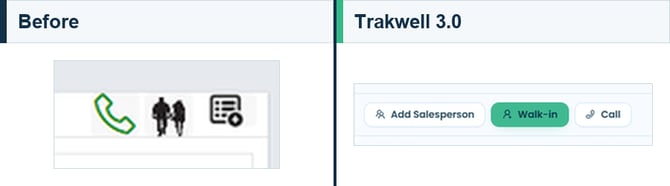
These buttons are only visible to Traffic Cop users. If you don't see them, check with your company admin about your access level.
Photo Actions
This is the biggest visual difference in 3.0.
Old Trakwell
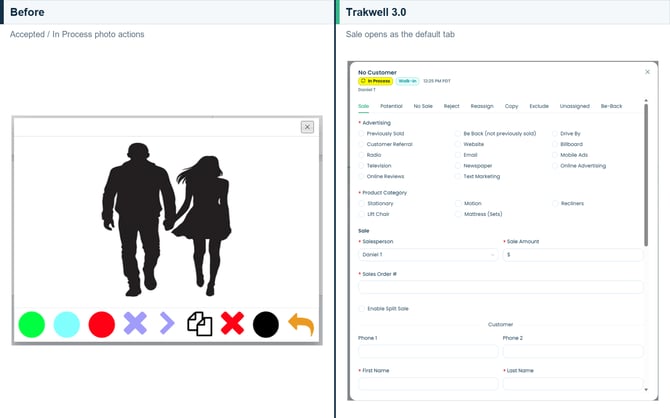
When you clicked on a customer photo to expand it, the available actions appeared as icons along the bottom of the photo. You'd tap the icon for the action you wanted -- no labels, just symbols.
Trakwell 3.0
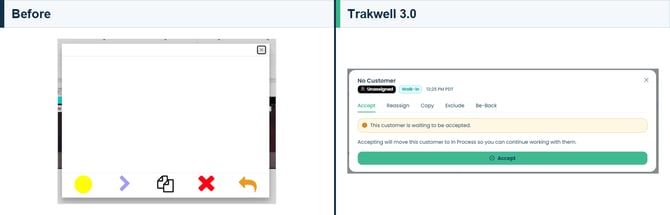
Clicking a photo now opens a panel with named tabs along the top -- Accept, Sale, Potential, No Sale, Reject, Reassign, Copy, Exclude, Unassigned, and Be-Back. Each tab opens a form for that action.
The tabs you see will depend on the photo's current status:
- Unassigned photos -- Accept tab appears first
- In Process photos -- outcome tabs (Sale, Potential, No Sale, etc.) are available
Quick Entry
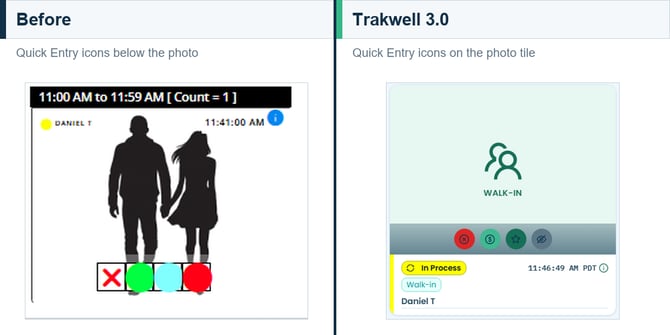
Quick Entry works the same way it always has. The icon overlays on each photo tile are still there -- you don't have to open the full panel to take fast action on a photo.
In 3.0, Quick Entry is a toggle controlled by the Traffic Cop from the top-right of the Upboard. When it's on, the quick action icons appear on the photo tiles. When it's off, they're hidden.
Upboard Toggles
What changed: The toggles moved and some are now Traffic Cop-only.
| Toggle | Old Location | 3.0 Location | Who Can See It |
|---|---|---|---|
| Open Floor | Bottom of Upboard (green pill) | Top-right of Upboard | Traffic Cop only |
| Quick Entry | Bottom of Upboard (green pill) | Top-right of Upboard | Traffic Cop only |
| Display Upboard | Bottom of Upboard (green pill) | Top-right of Upboard | All users |
| Photos Showing | Bottom of Upboard (green pill) | Top-right of Photos section | All users |
| Exclude Showing | Bottom of Upboard (green pill) | Top-right of Photos section | All users |
CRM
The CRM got the biggest overhaul in 3.0. Everything that used to live on one crowded page is now split into tabs, and most customer actions happen on the customer's own page.
Old Trakwell
Clicking Contact Manager took you straight into the CRM, a single page with a left panel and a results table.
The left panel had:
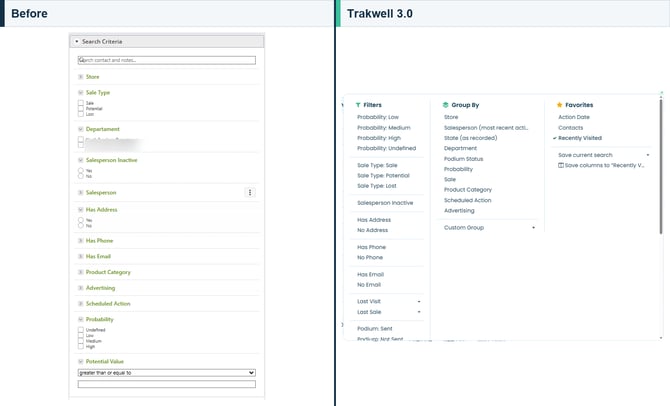
- Search Criteria, collapsed at the very top, for searching contacts and notes and filtering by store, sale type, department, salesperson, address, phone, email, product category, advertising, scheduled action, probability, and potential value
- Scheduled Actions, a list of upcoming actions with radio buttons for Scheduled, Late, Completed, Rescheduled, Cancelled, and Unknown
- Prospect History, showing details for whichever customer row you clicked, where you could edit the customer, attach files or a sketch, and see their history
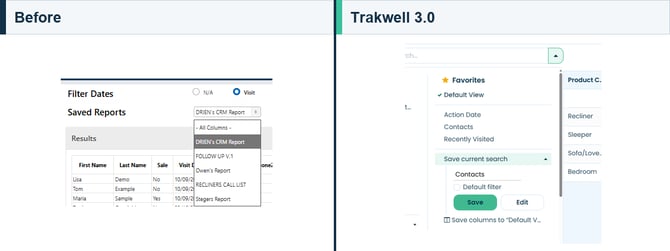
Above the table, Filter Dates let you filter by visit or action date, and Saved Reports loaded a report you'd saved before.
The results toolbar had icon buttons to customize columns, reset sorting, download a CSV, submit a CRM sale, mark a lost sale, add a customer, add a note, add an appointment, import contacts, and hide the left panel.
Trakwell 3.0
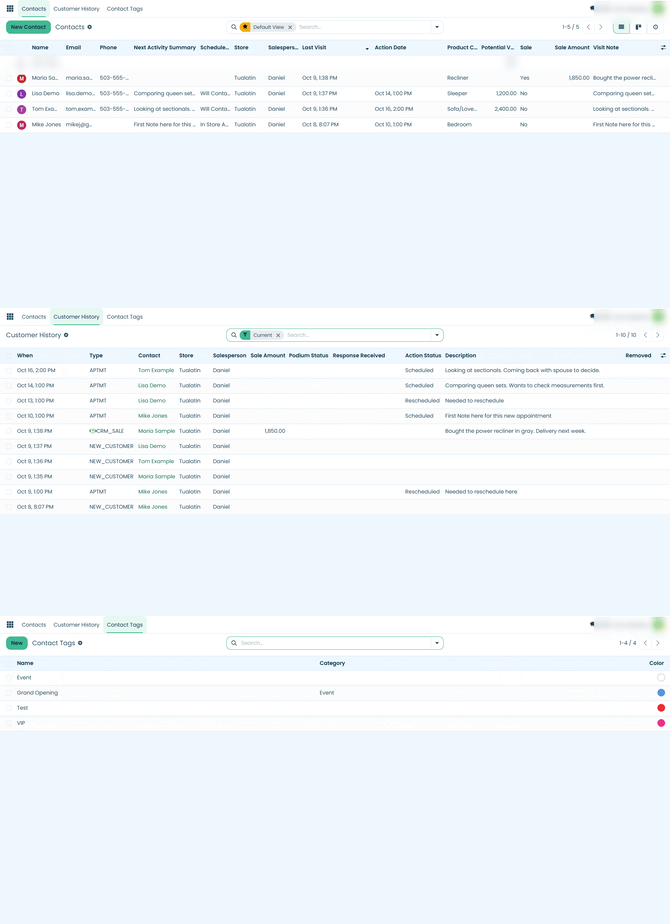
Contact Manager now opens to the Contacts tab, with two more tabs next to it.
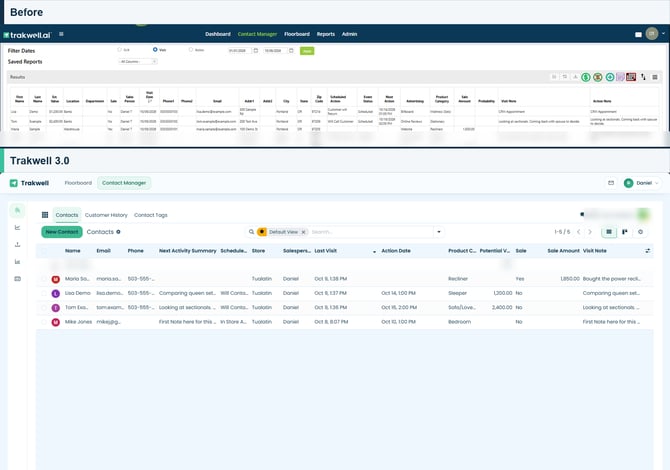
- Contacts -- your full contact list. Click New Contact to add a customer.
- Customer History -- a running log of activity across all your customers, like sales, potentials, appointments, and notes
- Contact Tags -- new in 3.0. Create tags with a name, category, and color, and apply them to customers to keep them organized.
Search, filters, and saved reports
Search and filters moved to the search bar at the top center of the page. Click the dropdown arrow to open three menus:
- Filters -- probability, sale type, inactive salespeople, address, phone, email, last visit, last sale, and more
- Group By -- group results by store, salesperson, department, product category, and more
- Favorites -- this replaces Saved Reports
To save a search, open Favorites, choose Save current search, and give it a name. Check Default filter if you want it to load every time you open Contacts.
Working with a customer
Instead of a side panel, clicking a customer's row opens their own page.
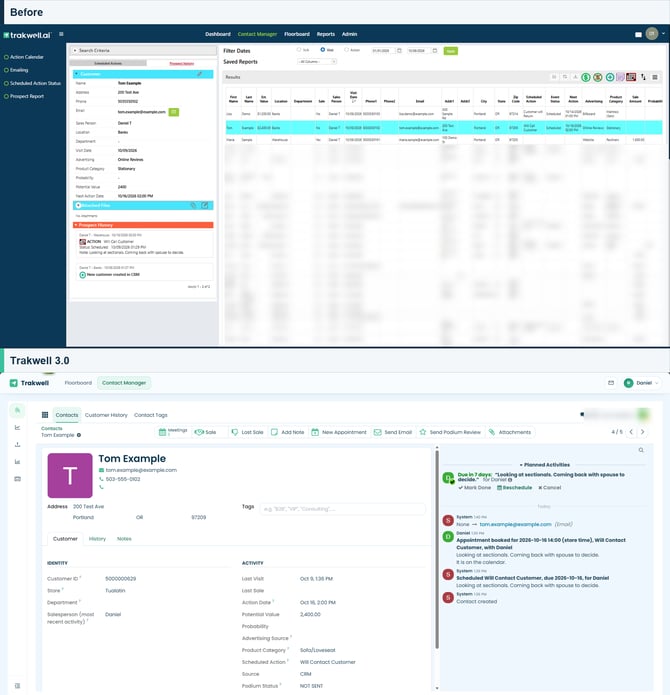
From there you can:
- Submit a Sale or Lost Sale
- Add a Note or New Appointment
- Send Email
- Send Podium Review (new in 3.0)
- Add Attachments
- Add tags
- View their personal History and add internal Notes
There are now two kinds of notes. Add Note at the top logs the note to the activity feed on the right side of the page. The Notes tab is for internal notes that stay on the customer's page.
Sketches are not available in 3.0.
Calendar
The Action Calendar is now its own area. Click the grid icon in the top-left corner and choose Calendar.
- Calendar shows your own appointments
- Team Calendar shows everyone's
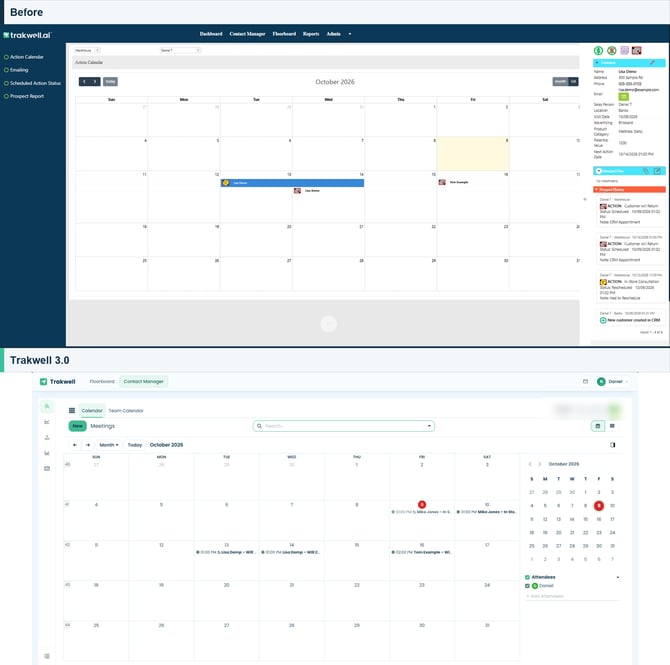
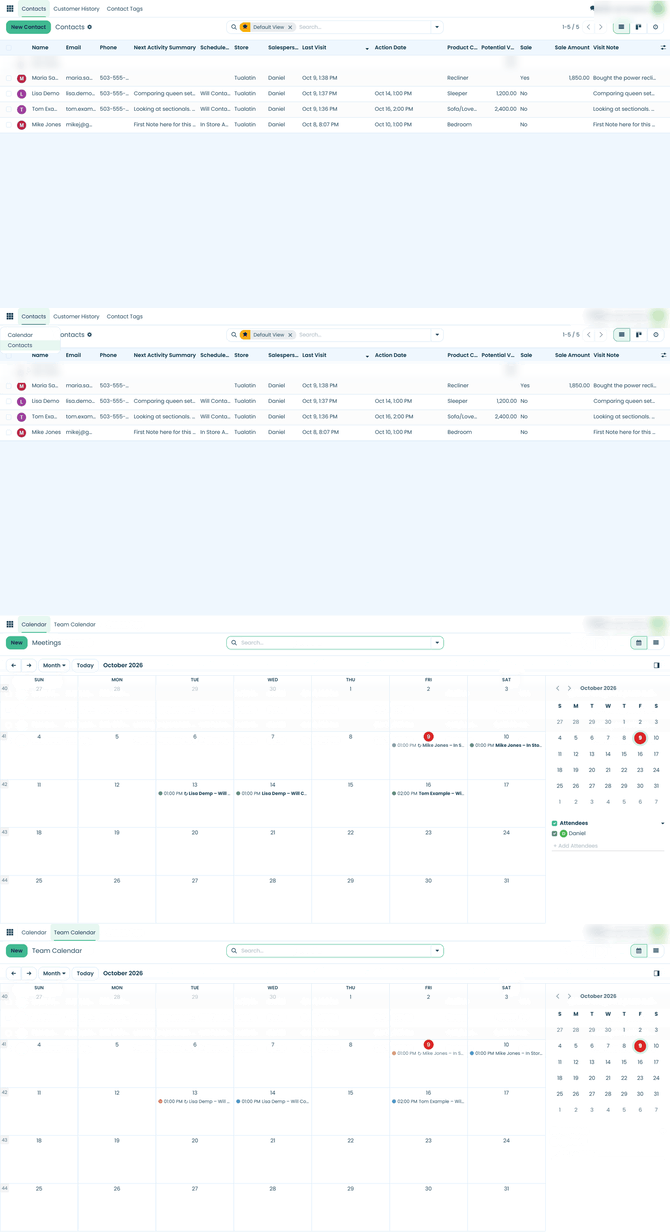
To update a scheduled action, click it on the calendar and choose Update Action. Pick an outcome (Complete, Cancel, Comment only, or Reschedule), add a comment, and click Apply. A comment is now required for every update.
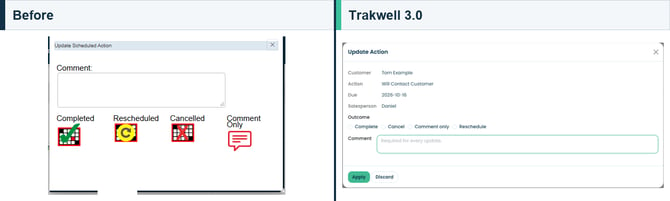
You can also update an action from the customer's page, using Mark Done, Reschedule, or Cancel in the Planned Activities panel on the right.
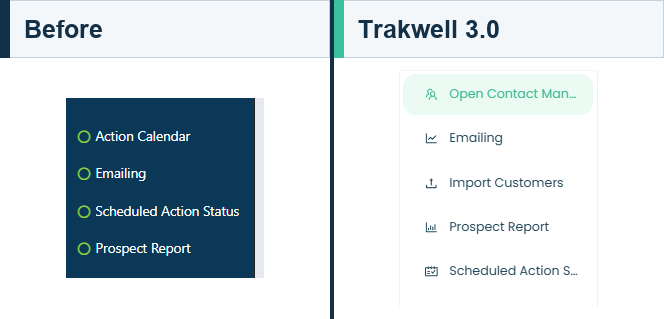
Left menu
The left menu looks familiar, with a couple of changes:
- Emailing and Prospect Report are still here and work the same way
- Import Customers now lives in the left menu instead of the results toolbar
- Scheduled Action Status is new in 3.0
Quick Reference
Not sure where something went? Here's a fast lookup.
| Looking for... | Where to find it in 3.0 |
|---|---|
| Home page | Loads automatically after login |
| Join the rotation | "Join upboard?" prompt the first time you open the Floorboard each day |
| Add Salesperson / Walk-In / Call | Left side of the Upboard, labeled with text |
| Photo action buttons | Named tabs at the top of the photo panel |
| Quick Entry icons | On each photo tile when Quick Entry is turned on |
| Open Floor toggle | Top-right of Upboard (Traffic Cop only) |
| Display Upboard toggle | Top-right of Upboard (all users) |
| Photos Showing / Exclude Showing | Top-right of Photos section |
| Change password / log out | Click your name in the top-right corner |
| Search Criteria / Filter Dates | Search bar at the top center of Contact Manager |
| Saved Reports | Favorites in the search bar dropdown |
| Prospect History | Click a customer's row, then the History tab |
| Add Customer | New Contact button on the Contacts tab |
| Sale / Lost Sale / Add Note / Add Appointment | Top of the customer's page |
| Import contacts | Import Customers in the left menu |
| Action Calendar | Grid icon in the top-left corner, then Calendar |
| Update a scheduled action | Click the action on the calendar, then Update Action |
Still have questions?
Reach out at support@trakwell.ai or call 833-503-9934, or submit a ticket.