![TW Blue Logo 230908a.png]](https://help.trakwell.ai/hs-fs/hubfs/TW%20Blue%20Logo%20230908a.png?width=126&height=17&name=TW%20Blue%20Logo%20230908a.png)
If you're having trouble logging in to Trakwell, you can reset your password directly from the login screen.
Step 1: Go to the login page
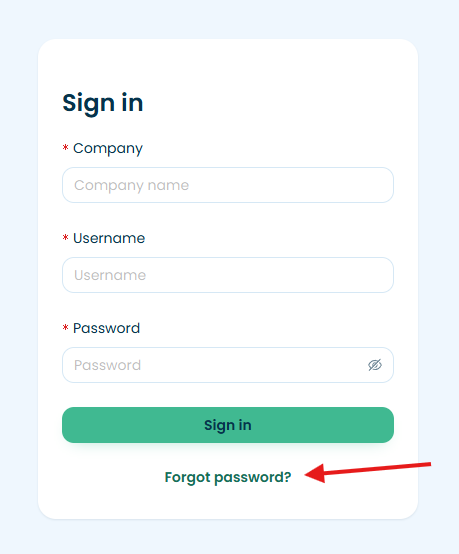
Navigate to app.trakwell.ai and click "Forgot password?" at the bottom of the sign in form.
Step 2: Enter your Company and Username
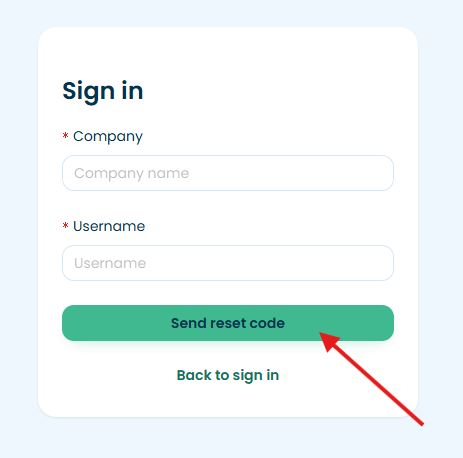
You'll be taken to a password reset screen. Enter your Company name and Username, then click "Send reset code."
Step 3: Check your email
You'll receive an email from noreply@trakwell.ai with your confirmation code. If you don't see it, check your spam or junk folder.
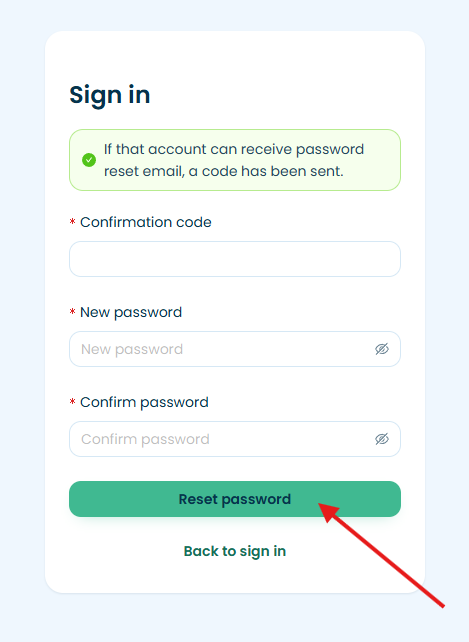
Enter the confirmation code along with your new password, confirm it, then click "Reset password."
Your new password must meet the following requirements:
- At least 8 characters
- One uppercase letter
- One number
- One symbol (e.g. !, @, #, $)
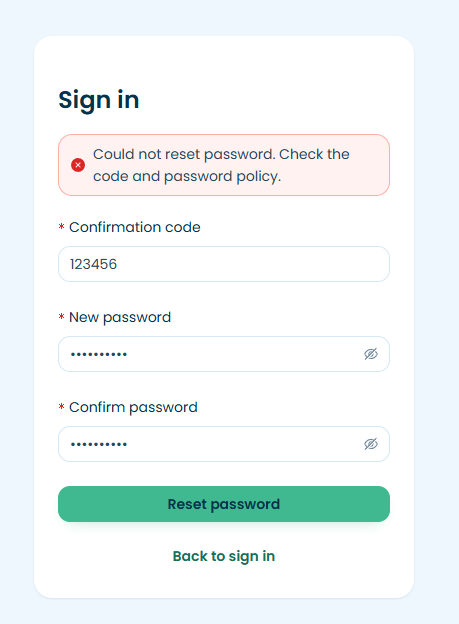
If you see the error "Could not reset password. Check the code and password policy," double check that your confirmation code is entered correctly and that your new password meets all of the requirements above.
Step 4: Sign back in
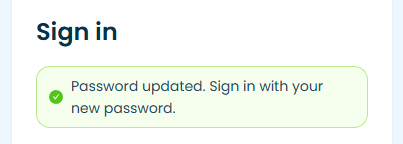
Once your password meets the requirements, you'll see a confirmation message: "Password updated. Sign in with your new password." Enter your Company, Username, and new password, then click "Sign in."
Still having trouble?
Password resets are managed by your company admin. If you are still unable to log in after resetting your password, or if you do not have an email address associated with your account, please reach out to your company admin directly for assistance.