![TW Blue Logo 230908a.png]](https://help.trakwell.ai/hs-fs/hubfs/TW%20Blue%20Logo%20230908a.png?width=126&height=17&name=TW%20Blue%20Logo%20230908a.png)
When you need to work with more than one contact, select them on the Contacts list and use the Actions menu. You can send emails, reassign contacts to other salespeople, merge duplicates, and export.
What you can do depends on your role:
- Salespeople: Send Email and Export for their own contacts.
- Managers: Send Email, Export, Reassign, and Merge for contacts at their store.
- Company managers and company admins: All actions for contacts at any store.
In this article:
- Select Contacts
- Send an Email to Multiple Contacts
- Reassign Contacts
- Merge Contacts
- Review Possible Duplicates
Select Contacts
- Go to Contact Manager > Contacts.
- Check the box next to each contact you want. To select everyone on the page, check the box in the column header row.
- To select every contact that matches your search, not just the ones on this page, click Select all.
- Click Actions and choose what you’d like to do.
Use filters first to narrow your list, then select all. For example, filter by a salesperson to reassign all of their contacts. 👉 Find and Organize Your Contacts
Export is also in the Actions menu. 👉 Customer History, Tags, and Exports
Send an Email to Multiple Contacts
Each customer gets their own separate email, so they won’t see who else it went to.
- Select the contacts and click Actions > Send Email.
- Fill in the email:
- From Salesperson: Who the email is sent from. Salespeople send from themselves. Managers and company admins can pick any salesperson.
- Topic: The email template to use.
- Subject: The subject line.
- Edit message and Attachments: Change the message or add files if needed.
- Check the preview. Click Refresh to update it after making changes.
- Click Send.
Each email is logged in the contact’s History.
Contacts without an email address are listed as unresolved. Click Remove them to take them off the list before sending.
Reassign Contacts
Reassign moves contacts to a different salesperson.
- Select the contacts and click Actions > Reassign.
- Review the contacts’ current salespeople and how many open scheduled actions will move with them.
- Check the salesperson to reassign them to.
- Click Confirm.
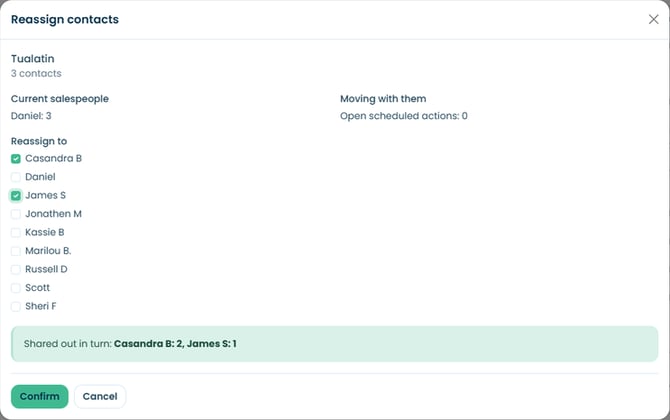
Split contacts between salespeople
Check more than one salesperson to split the contacts evenly between them. Contacts are handed out in turn, one salesperson after the next.
Good to know:
- Only open scheduled actions move to the new salesperson. Completed, rescheduled, and cancelled actions stay as they are.
- Contacts that are already assigned to the salesperson you pick stay as they are.
- Reassign works with one store’s contacts at a time. If you select contacts from different stores, you’ll see a message asking you to select one store’s contacts at a time.
- Managers can reassign to salespeople at their store. Company managers and company admins can reassign to a salesperson at any store.
To reassign a single contact, open their record, click the gear icon next to their name, and select Reassign.
Merge Contacts
Merge combines duplicate contacts into one, so a customer’s history is all in one place. You can merge 2 to 10 contacts at a time.
A merge can’t be undone. Review everything carefully before merging.
- Select the contacts and click Actions > Merge.
- Review the comparison table and choose which contact to keep with Keep this contact.
- Use Include in the merge to choose which of the other contacts to merge in. Why they match shows what the contacts have in common.
- Under Details to keep, choose which name, phone, phone 2, email, address, advertising source, and salesperson to keep.
- Click Merge X contacts (for example, Merge 2 contacts).
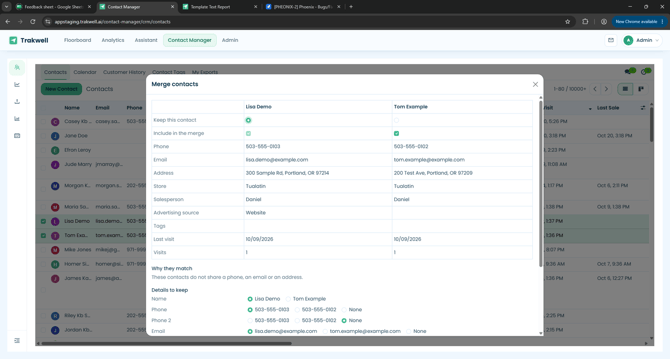
What happens after a merge:
- The other contacts are removed, and their history moves to the contact you kept.
- All tags from every contact are kept.
- The contact’s store is set from the customer’s most recent visit.
- The merge is logged in the contact’s History.
Managers can merge contacts at their store. Company managers and company admins can merge contacts from different stores.
Review Possible Duplicates
Contacts that share details, like a phone number, email, or address, are flagged as possible duplicates.
Find possible duplicates
On the Contacts list, open the search menu and choose the Possible duplicates filter.
Review a duplicate from the contact record
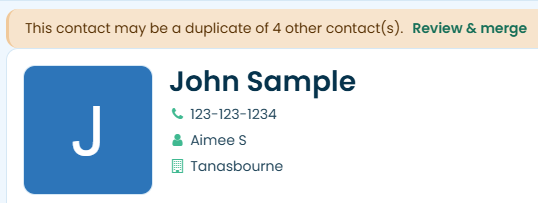
When a contact may be a duplicate, a banner shows at the top of their record. Click Review & merge to open the merge form and compare them. If they’re different customers, click Not a duplicate to dismiss the flag.
Still have questions? Call or text us at 833-503-9934, email support@trakwell.ai, or 👉 submit a ticket