![TW Blue Logo 230908a.png]](https://help.trakwell.ai/hs-fs/hubfs/TW%20Blue%20Logo%20230908a.png?width=126&height=17&name=TW%20Blue%20Logo%20230908a.png)
Every customer in the Contact Manager has a contact record with their details, sales activity, and history. You can add contacts yourself, and they’re also created automatically when sales are entered on the Floorboard.
Who you can create and edit contacts for depends on your role:
- Salespeople: Their own contacts only.
- Managers: Contacts for any salesperson at their store.
- Company admins: Contacts for any store and any salesperson.
In this article:
- Create a New Contact
- Required and Optional Fields
- Contacts Added From the Floorboard
- Edit a Contact
- Change a Contact’s Store or Salesperson
Create a New Contact
- Go to Contact Manager > Contacts.
- Click New Contact at the top left.
- Fill in the customer’s details. See Required and Optional Fields below.
- Click Create.
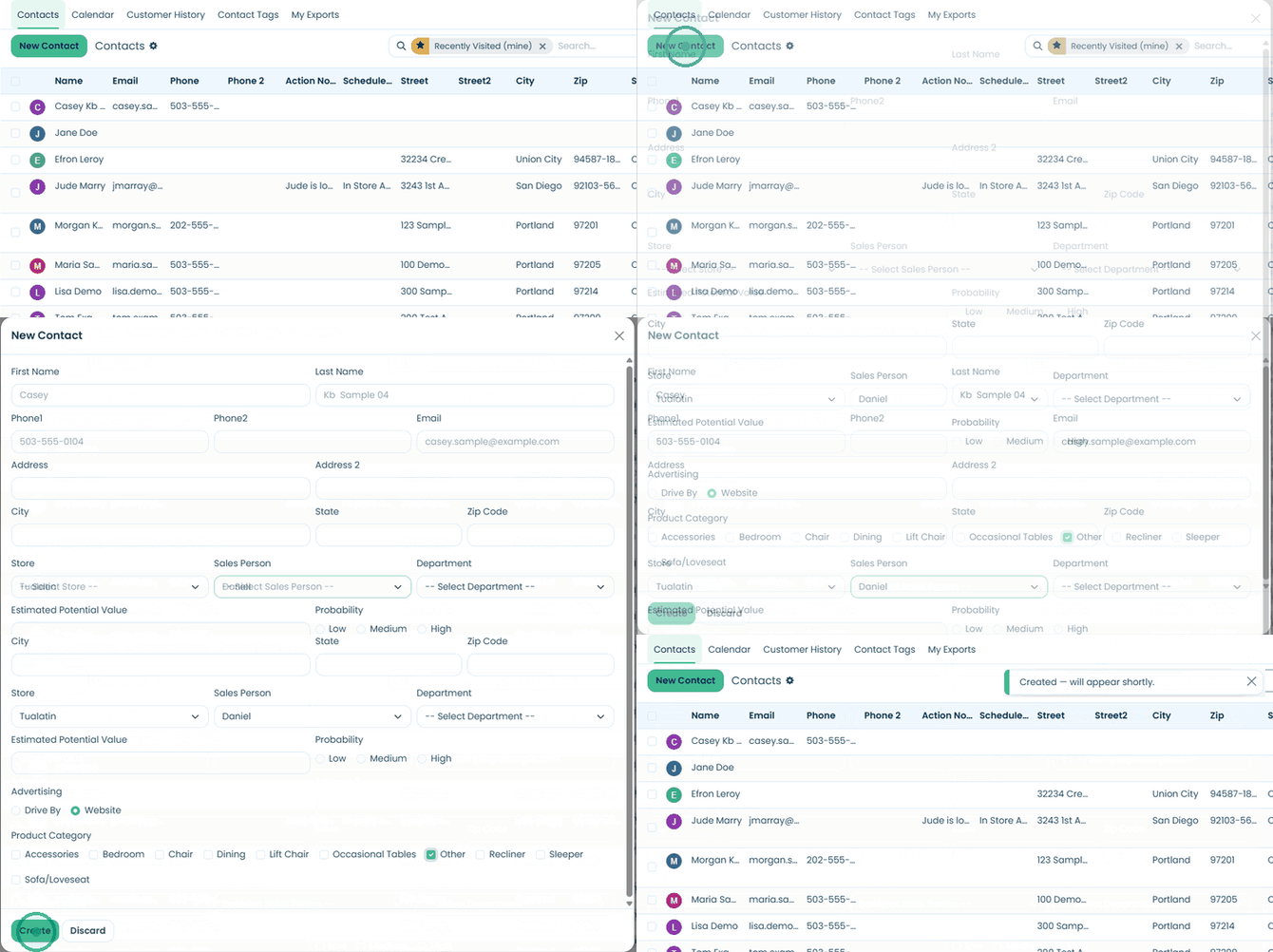
After you click Create, you’re taken back to the Contacts list. It can take a few seconds for the new contact to show up.
If the customer may already be in the system, their record will show a possible duplicate banner so you can review and merge them. 👉 Bulk Actions: Email, Reassign, and Merge
Required and Optional Fields
Required:
- First and last name
- At least one way to reach the customer: phone, email, or address
- Store
- Sales Person
- Advertising (how the customer heard about you, like Drive By or Website), if your account uses it
- Product Category, if your account uses it
Optional:
- Phone 2, Address 2, City, State, and Zip Code
- Department
- Estimated Potential Value
- Probability (Low, Medium, or High)
Some fields, like Department, Estimated Potential Value, Probability, Advertising, and Product Category, only appear if your account uses them. If you don’t see a field, your account doesn’t need it.
Contacts Added From the Floorboard
Contacts are also created when a salesperson enters a sale or potential sale for a customer on the Floorboard. The new contact is added to the Contact Manager automatically, so there’s no need to create it again.
If your account has a POS integration, the customer’s information fills in automatically when entering the sale.
👉 Floorboard: Customer Photo Actions
Edit a Contact
Salespeople can edit their own customers. Managers and company admins can edit any customer they have access to.
- Open the contact from the Contacts list.
- Click the gear icon next to the contact’s name and select Edit Customer.
- Make your changes.
- Click Apply Changes.
Every change is saved to the contact’s activity log on the right and on the History tab, showing what changed and who changed it (for example, Email: (none) → jmarray@aol.com).
Change a Contact’s Store or Salesperson
The Edit Customer form doesn’t include Store or Sales Person. To change who a contact is assigned to, managers and company admins can use:
- Reassign: Moves the contact to a different salesperson. Find it in the gear icon next to the contact’s name, or select contacts on the Contacts list and use the Actions menu.
- Merge: When combining duplicate contacts, you choose which salesperson to keep. The store comes from the customer’s most recent visit.
👉 Bulk Actions: Email, Reassign, and Merge
Still have questions? Call or text us at 833-503-9934, email support@trakwell.ai, or 👉 submit a ticket