![TW Blue Logo 230908a.png]](https://help.trakwell.ai/hs-fs/hubfs/TW%20Blue%20Logo%20230908a.png?width=126&height=17&name=TW%20Blue%20Logo%20230908a.png)
The Calendar shows every appointment and scheduled action in one place. You can book new appointments, mark them complete, reschedule, or cancel them.
Salespeople see their own scheduled actions. Managers see their store’s, and company admins see all stores.
In this article:
- Calendar Views
- Colors and Icons
- Book an Appointment
- View and Update an Appointment
- Drag to Reschedule
- Search and Filter
- List View and Export
Calendar Views
Go to Contact Manager > Calendar. The Calendar opens in Month view.
- Change the view: Click the view menu to switch between Month, Week, Day, and Year. You can also turn Show weekends on or off.
- Move around: Use the arrows to go forward or back, click Today to jump to today, or pick a date on the mini calendar on the right.
- Hide the side panel: Click the panel icon at the top right for more room.
Filter by store or salesperson
Managers and company admins can use the Store and Salesperson checkboxes in the side panel to choose whose appointments show. Check Inactive salespeople to also see appointments for salespeople who are no longer active.
Colors and Icons
Each appointment’s color and icon show its status at a glance.
| Color | Icon | Status |
|---|---|---|
| Blue | Scheduled | |
| Red | Late | |
| Orange | ↻ | Rescheduled |
| Green | ✓ | Completed |
| Purple | ✕ | Cancelled |
When an appointment is rescheduled, the original stays on the Calendar in orange with the ↻ icon, and the new one shows in blue on the new date.
Book an Appointment
There are two ways to start:
- Click any open spot on a date to book an appointment on that day.
- Click New at the top left.
Then:
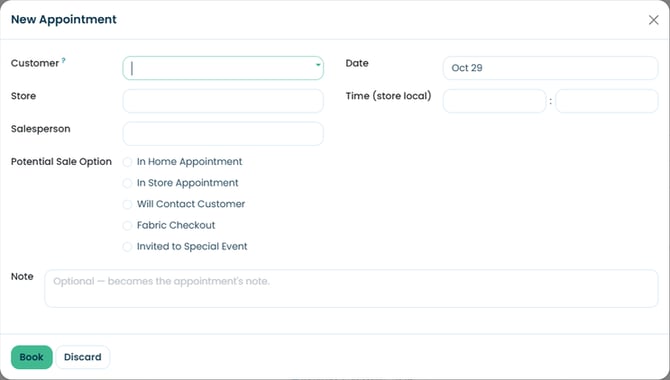
- Choose the Customer. This must be an existing contact.
- Check the Store and Salesperson.
- Pick the Date and Time (in the store’s local time).
- Choose a Potential Sale Option, the type of appointment. Options vary by account.
- Add a Note if you’d like.
- Click Book. To cancel, click Discard.
Need to add a new customer first? 👉 Create and Edit a Contact
View and Update an Appointment
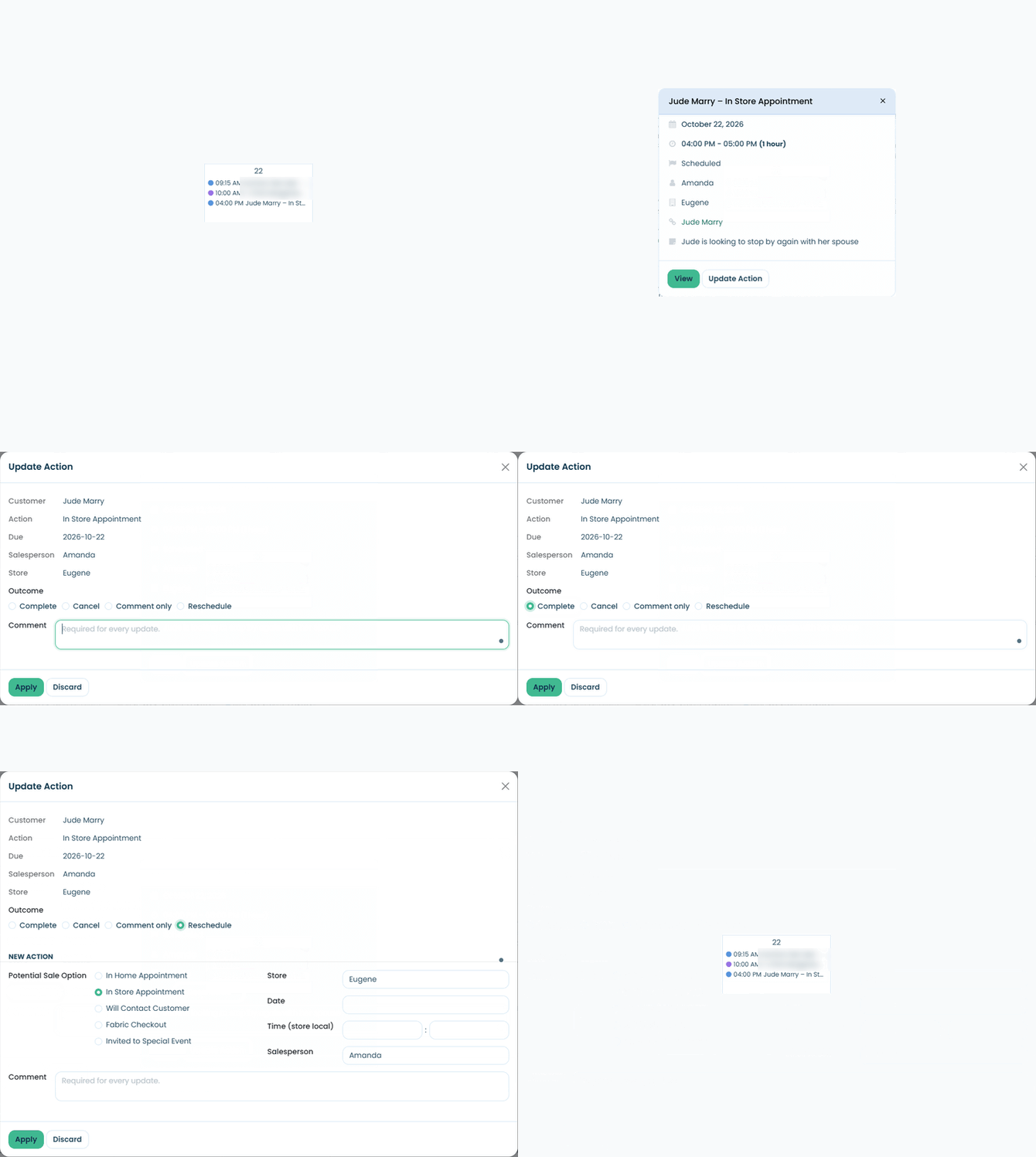
Single click an appointment to see a quick summary.
- Open appointments show View and Update Action.
- Past appointments (completed, rescheduled, or cancelled) show View only.
Double click an appointment, or click View, to open its full details, including the customer, action, notes, salesperson, store, and status. Click the customer’s name to go to their contact record.
Update an appointment
- Click the appointment, then click Update Action.
- Choose an option:
- Complete: Marks it done.
- Cancel: Cancels it.
- Comment only: Adds a comment without changing the status.
- Reschedule: Moves it to a new date or time.
- Enter a comment. A comment is required for every update.
- Click Apply. To cancel without saving, click Discard or the X at the top right.
If you choose Reschedule, set the new Potential Sale Option, Store, Date, Time, and Salesperson before clicking Apply.
Salespeople can update their own appointments. Managers and company admins can update anyone’s.
Drag to Reschedule
Salespeople can drag their own appointments to a new day or time on the Calendar.
Only the salesperson assigned to an appointment can drag it. Managers and company admins can reschedule anyone’s appointment with Update Action > Reschedule.
Search and Filter
Click the arrow on the search bar to open the search menu.
- Filters: My Meetings, Date, Late, Scheduled, Rescheduled, Completed, and Cancelled. Use Custom Filter to build your own.
- Favorites: Save a search to get back to it quickly. 👉 Find and Organize Your Contacts
List View and Export
Click the list icon at the top right to see appointments as a list with Subject, Start, Status, Salesperson, and Store. Use the column picker to add or remove columns.
In List view, you can also Group By Store, Salesperson, Status, or Date, or create a Custom Group.
To export, click the gear icon next to the page name and select Export.
Still have questions? Call or text us at 833-503-9934, email support@trakwell.ai, or 👉 submit a ticket